Choose the Best Keyboard: Layout, Switches & Comfort
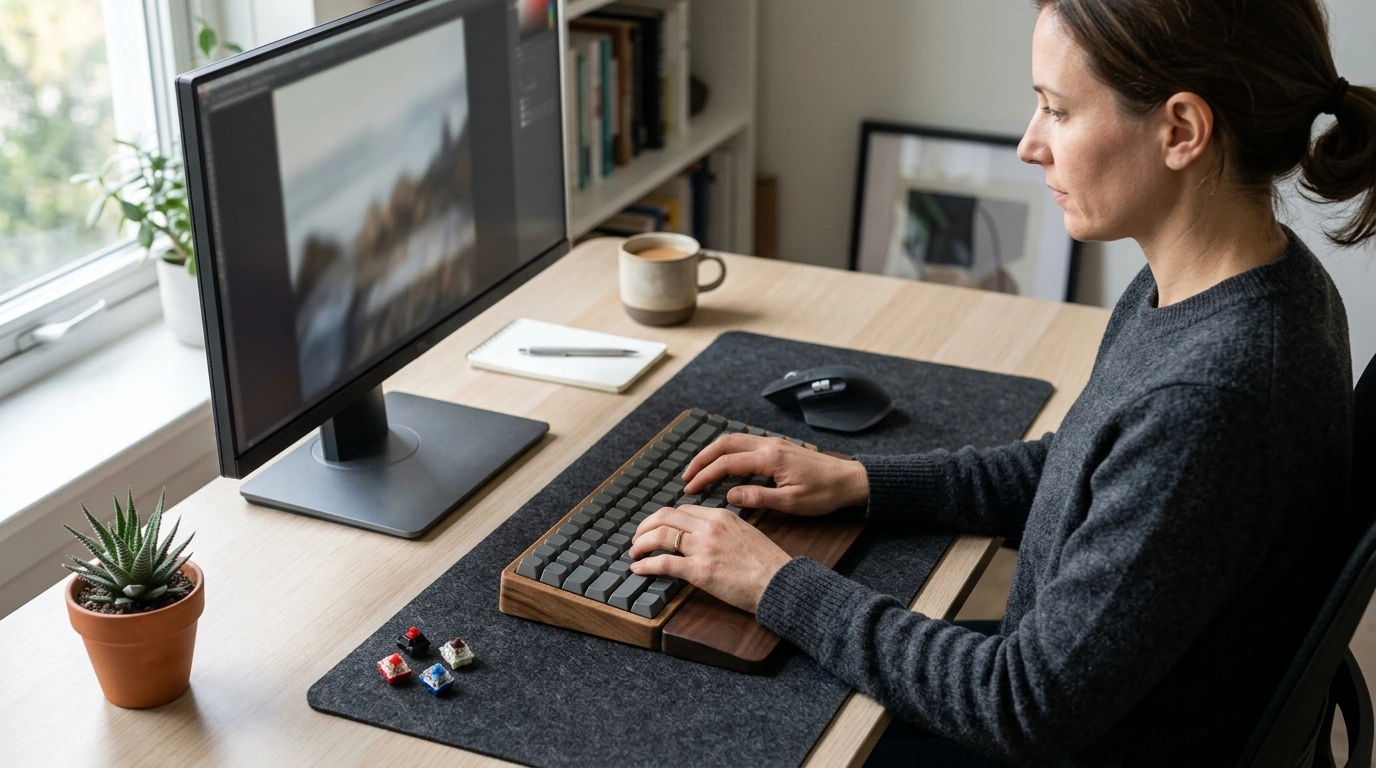
Keys That Click: Choosing Your Perfect Keyboard for Typing, Gaming, and Work
A keyboard is equal parts tool and daily tactile experience. The right choice depends on how it fits your hands, desk, and routines—then on switches, layout, and features that match typing comfort, gaming responsiveness, or all-day productivity. Get the fundamentals right (layout, switch feel, ergonomics), and everything else—lighting, knobs, macros—becomes a nice extra instead of a costly distraction.
Start with the job: typing comfort, gaming speed, or mixed use
Before comparing specs, decide what “good” means for your day-to-day use:
- Typing-first priorities: consistent feel across keys, comfortable spacing, and a sound level that won’t irritate roommates or coworkers.
- Gaming-first priorities: low input delay, stable keys, anti-ghosting/N-key rollover, and enough desk room to keep mouse movement unrestricted.
- Work-first priorities: reliability, quiet operation, quick device switching, and shortcuts for common tasks (media, screenshot, mute, meeting controls).
- Mixed use: favor balanced switches, a practical layout, and a wrist-friendly setup rather than chasing one extreme feature.
Choose a layout that fits the desk and muscle memory
Layout affects everything: reach distance, shortcut access, portability, and even shoulder posture.
- Full-size: includes numpad; ideal for spreadsheets and frequent number entry, but it has the widest footprint.
- TKL (tenkeyless): removes numpad; keeps function row and arrows; a common “best of both” for gaming plus work.
- 75% / 65%: compact while retaining arrows; navigation keys may be tighter or moved into layers.
- 60%: smallest mainstream option; relies heavily on layers for function keys and navigation—excellent for portability, less ideal for heavy shortcut workflows.
- Regional layouts: confirm ANSI vs. ISO and language needs before buying replacement keycaps or planning mods.
Switch feel: linear, tactile, or clicky
Switch type influences accuracy, speed, fatigue, and how “present” the keyboard feels under your fingers. Just as important as the category is the actuation force and travel—lighter isn’t automatically better for long sessions if it causes accidental presses or encourages hard bottoming out.
Quick switch comparison
| Switch type | What it feels like | Best for | Watch out for |
|---|---|---|---|
| Linear | Smooth downstroke with no bump | Fast gaming inputs, fluid typing rhythm | Accidental presses if too light; can sound “thocky” when bottoming out |
| Tactile | A bump confirms actuation | Typing accuracy, mixed use | Bump strength varies widely; some feel scratchy without lubrication |
| Clicky | Bump plus click sound | Solo offices, enthusiasts who like audible feedback | Noise complaints; microphones pick up clicks easily |
Keycaps and legends: comfort, durability, and readability
Keycaps are the part you physically touch, so their material and shape matter more than most people expect.
- Materials: PBT tends to resist shine and keeps a lightly textured feel; ABS often feels smoother and can polish to a shine over time.
- Legend method: double-shot and dye-sublimated legends generally outlast printed legends, especially for heavy typists.
- Profile: sculpted profiles guide fingers into a natural arc; uniform profiles can be helpful for remapping and compact layouts.
- Backlighting needs: choose shine-through caps only if night visibility is truly essential—many high-durability caps aren’t designed for bright legends.
Stability and build: the details that change everything
Two keyboards can share the same layout and switch type yet feel completely different because of build details.
- Stabilizers: spacebar, shift, and enter are only as good as their stabilizers. Properly tuned stabilizers dramatically reduce rattle and make a board feel more “premium.”
- Case and plate: materials affect stiffness and sound; heavier keyboards tend to move less on the desk.
- Mounting and damping: foam layers or gasket elements can reduce harshness, soften bottom-out impact, and help with long-session comfort.
- Common red flags: key wobble, metallic “ping,” uneven key feel, or a hollow echo are frequent sources of buyer’s remorse.
Ergonomics: posture, wrist angle, and long-session comfort
Comfort often comes down to setup, not hype. A neutral wrist posture reduces strain, so avoid excessive wrist extension caused by a tall front edge. Set chair and desk height first, then pick a keyboard that matches the resulting hand position.
- Wrist rests: use one only if it supports the palms lightly; avoid compressing the wrists while typing.
- Split/tented boards: can help if shoulder width or forearm rotation makes standard boards feel cramped.
- Practical guidance: OSHA’s workstation tips are a solid baseline for desk setup and posture (OSHA Computer Workstations eTool), and NIOSH offers evidence-based ergonomics context (NIOSH Ergonomics).
Connectivity and multi-device use
Features that matter for gaming and for work
A simple decision path
Practical guide to narrow choices faster
Recommended reads from our store
- Keys That Click: Choosing Your Perfect Keyboard – A Practical Guide on how to choose a keyboard for Typing, Gaming & Work ($5.99) — a focused, plain-English guide to layouts, switch feel, ergonomics, and the real tradeoffs that shape comfort and performance.
- AI-Powered Products Made Simple: The Ultimate Guide on How to Use ChatGPT to Create Digital Products, eBooks, Checklists, and More ($7.99) — a productivity-friendly companion for creators who want a clearer workflow once their desk setup is dialed in.
FAQ
What keyboard size is best for most people?
TKL or 75% is a strong default because it saves desk space while keeping arrows and the function row (or close equivalents) for everyday shortcuts. Choose full-size if you enter numbers constantly, and pick 60% only if portability matters more than having dedicated navigation keys.
Are mechanical keyboards always better for typing and gaming?
No—mechanical can offer switch variety and long-term durability, but comfort depends on switch force, sound, and overall ergonomics. High-quality membrane or scissor-switch keyboards can still feel excellent, especially for quiet offices and low-profile preferences.
How can a keyboard be made quieter without changing performance?
Silent switches, light lubrication, and stabilizer tuning reduce sharp noise without affecting responsiveness, and a desk mat can cut resonance. Clicky switches are the hardest to quiet because the click mechanism is designed to be loud.











Leave a comment